
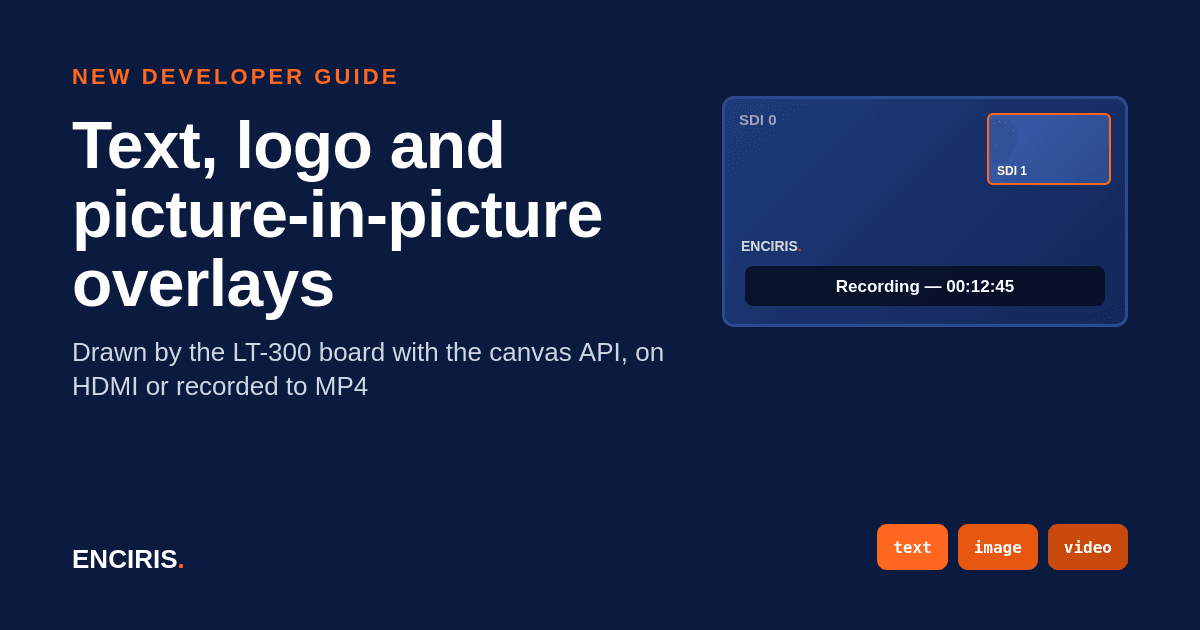
A surgical display that shows the patient name, a monitoring wall with two cameras in one picture, a branded output with your logo in the corner: all of these are overlays, and on an LT-300 series card the board draws them for you. Our new developer guide shows how, with the canvas API. In about 20 minutes you go from a first text banner to side-by-side and picture-in-picture layouts, shown on the HDMI output or recorded to MP4, from a few JSON operations.
What the guide covers
- What a canvas is:a virtual video source you draw on with text, lines, ellipses, rectangles, images and live inputs. The agent gives you four by default,
canvas/0tocanvas/3. - Text banners:a semi-transparent rounded box with centred text, in a few lines.
- Logos:JPEG, PNG or BMP files, scaled to fit while keeping their aspect ratio.
- Side-by-side and picture-in-picture:several live inputs placed on one canvas, set up in a single request.
- HDMI output and recording:apply a canvas as an overlay on the HDMI output, or record it like any input.
- Updates without flicker:for clocks, counters and detection boxes that change many times a second.
A text banner in two commands
Each drawing operation has its own endpoint. With the
ecurl
command line tool, a rounded black banner with white text at the bottom of the image takes two commands:
$ ecurl post lt300:/canvas/0/rectangle \
-d position=50,900 -d size=1200,100 \
-d fill=0,0,0,180 -d rounded=10
$ ecurl post lt300:/canvas/0/text \
-d position=50,900 -d size=1200,100 \
-d text="Hello, World!" -d fontSize=48 \
-d color=255,255,255,255 -d align=center
Two inputs, one picture
The
video
operation places a live input on the canvas, scaled to its container. Send the whole layout to the
ops
endpoint in one request: here the first SDI input fills a 1080p canvas and the second one sits in the top-right corner.
{
"ops": [
{ "op": "init", "size": [1920, 1080], "color": [0, 0, 0, 255], "framerate": 30.0 },
{ "op": "video", "source": "0/sdi-in/0", "position": [0, 0], "size": [1920, 1080] },
{ "op": "video", "source": "0/sdi-in/1", "position": [1380, 60], "size": [480, 270] }
]
}
$ ecurl post lt300:/canvas/0/ops -d @pip.jsonThe guide also builds a 4K side-by-side view of two inputs with a label under each, and explains the one rule to remember: drawings stack in the order you send them, and live video sources are always rendered on top.
Record exactly what you see
A canvas can be recorded like an input, with the same GPU encoder settings as in our recording guide, so the overlay and the layout end up in the MP4 file:
$ ecurl rec lt300:/canvas/0/file \
-d media=video/mp4 \
-d extra.hw=nvenc \
-d extra.codec=hevc
For content that changes, such as a timer on the banner, send the
clear
and the new drawings in the same batch. A batch is applied in one go and all its operations succeed or fail together, so the old drawing is replaced without an empty frame in between.
Who it is for
The guide is written for developers and integrators using an LT311 or LT313 card (two inputs for the layouts), with
ecurl
or the SDK. Every example is a short JSON request that you can try from the command line before you put it in your application.
Medical displays, multi-camera monitoring, branded outputs: if you need a specific layout or overlay, talk to our engineers. We help you build it.